Prompt Builder
The Prompt Builder is a specialized tool for creating, testing, and analyzing AI prompt templates. It provides a complete workflow for developing prompts with variable substitution, multi-scenario testing, and sentiment analysis.
Overview
The Prompt Builder allows you to:
- Create and manage prompt templates with Handlebars-style variables
- Test prompts with multiple variable sets from real or simulated data
- Execute prompts against configured AI models
- Analyze prompt sentiment and style characteristics
- Track version history for each template
Template List
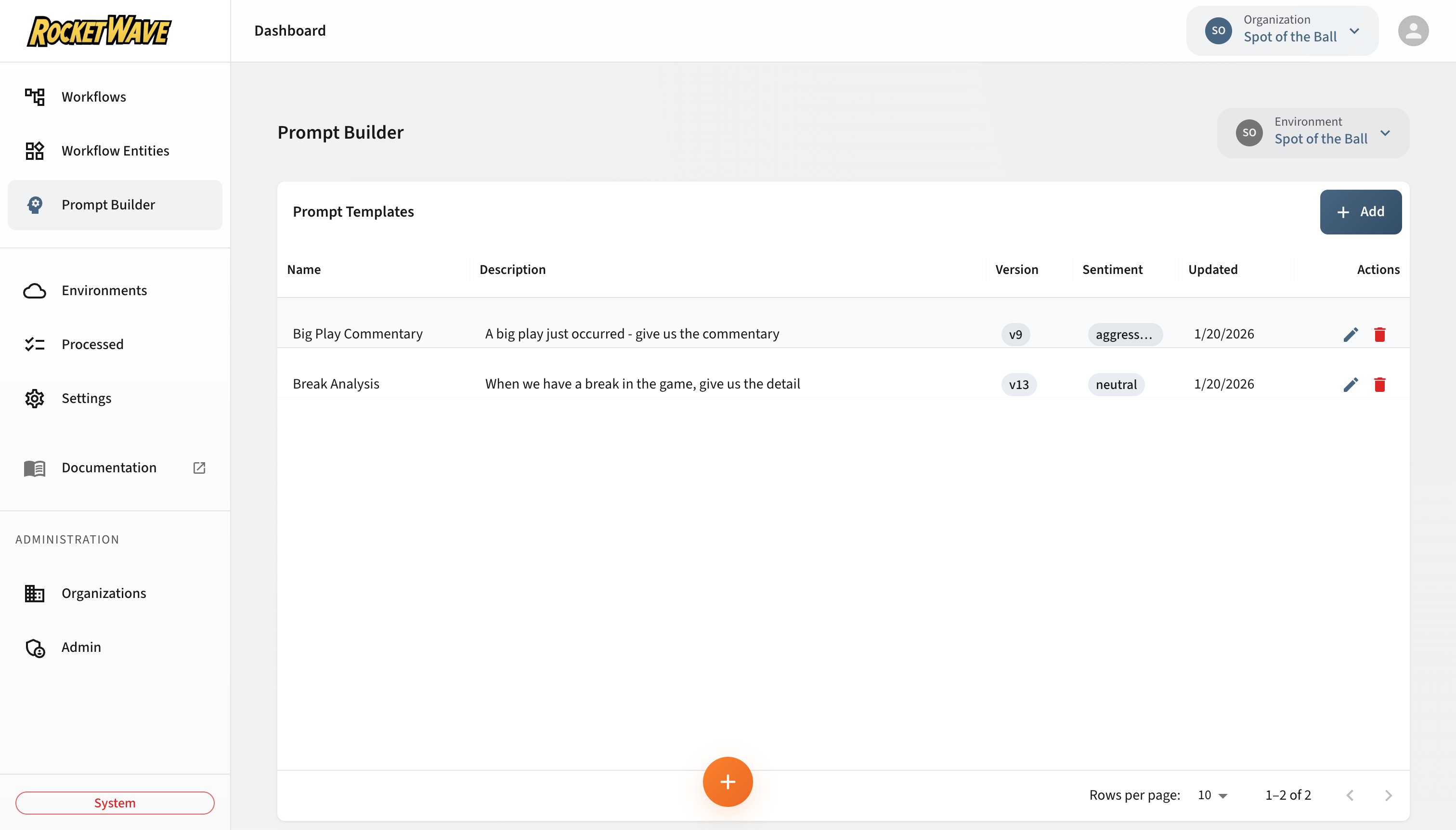
The main view displays all prompt templates in your environment:
| Column | Description |
|---|---|
| Name | Template name (e.g., "Big Play Commentary") |
| Description | Brief description of the template's purpose |
| Version | Current version number (auto-incremented on save) |
| Sentiment | Detected sentiment profile (aggressive, neutral, etc.) |
| Updated | Last modification date |
| Actions | Edit and delete buttons |
Creating a Template
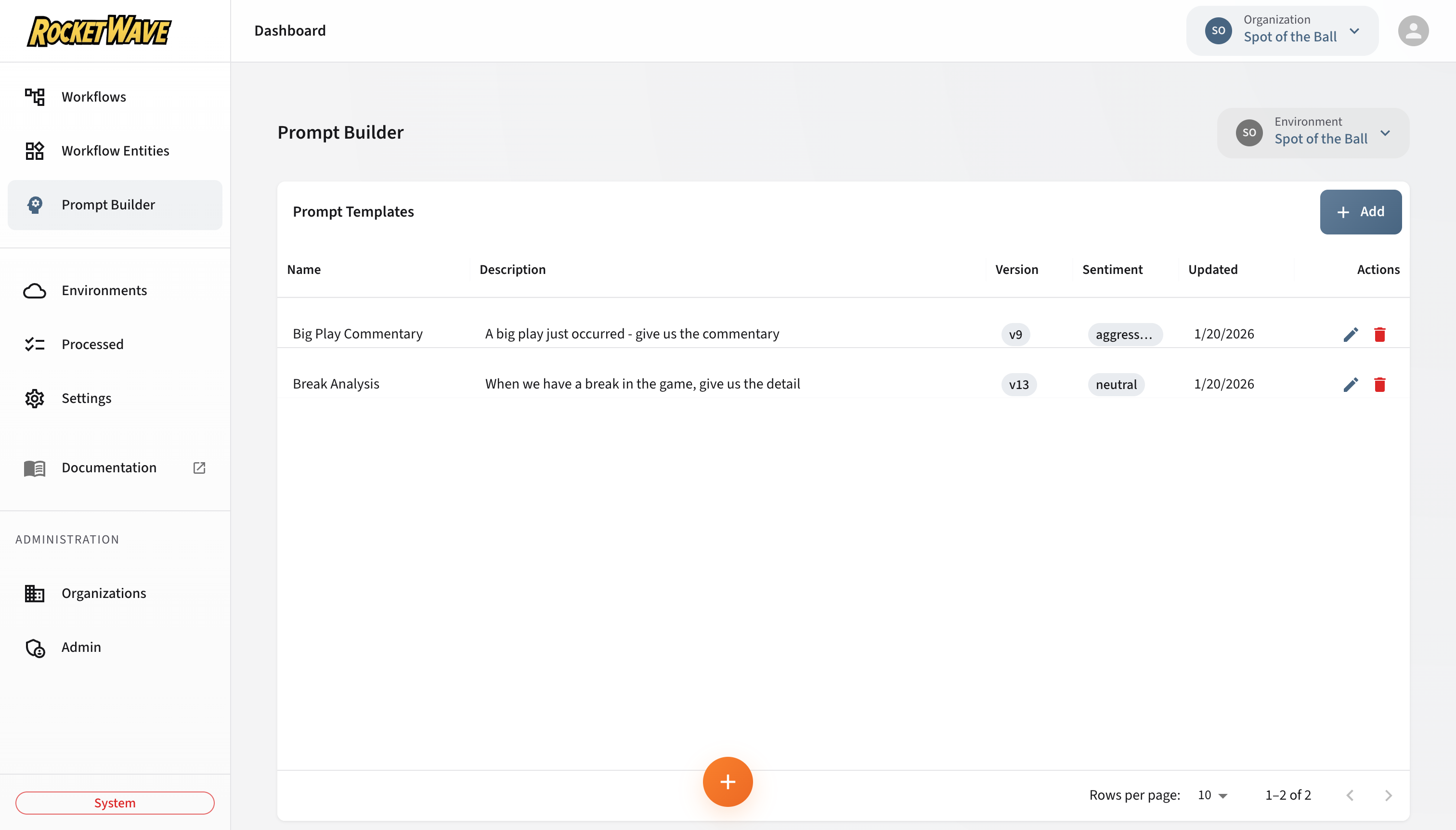
Click the + Add button to create a new template:
Required Fields
| Field | Description |
|---|---|
| Name | Unique template name |
| Model | AI model to use for execution |
| Prompt Text | The prompt content with optional variables |
Model is enforced by the API. Templates cannot be created or saved without a model selection. When a prompt entity uses a template, the model is inherited from the template and shown as a read-only preview in the entity form.
Variable Syntax
Use Handlebars-style double curly braces for variables:
You are a {{role}} analyst. Analyze the following data:
{{message}}

Current context: {{context.gameState}}
Variables can access nested properties using dot notation (e.g., {{user.profile.name}}).
Test Data Simulator
The Test Data Simulator allows you to define variable values and execute your prompt against the selected model.
Variable Sets
Create multiple variable sets (test scenarios) to test how your prompt performs with different inputs:
- Each set contains values for all detected variables
- Switch between sets using the tabs
- Results are stored per-set for comparison
Execution
- Select a model with valid credentials
- Configure variable values for the current set
- Click the scenario tab to execute
- View the execution result and response time
Sentiment Analysis
After execution, click Analyze to run sentiment analysis on both:
- Raw Prompt - The template before variable substitution
- Executed Result - The AI model's response
Analysis Metrics
| Category | Metrics |
|---|---|
| Sentiment | Overall tone (aggressive, neutral, positive, negative) |
| Style Dimensions | Formality, Directness, Politeness, Assertiveness |
| Psychological | Emotionality, Confidence, Dominance, Hostility |
| Emotions | Interest, Excitement, Tension, Anticipation, Joy, Anger, etc. |
| Goal Efficacy | How well the prompt achieves its identified goal |
| Audience Fit | How appropriate the prompt is for its target audience |
Comparison Graphs
The Prompt Builder provides visual comparisons of:
- Style dimensions between raw prompt and result
- Psychological dimensions
- Goal and efficacy metrics
- Emotion distribution
AI Assistant Integration
The AI Assistant can create both inline prompts AND reusable prompt templates:
| Method | Command | Use Case |
|---|---|---|
| Inline Prompt | "Create a prompt that summarizes data" | Quick, one-off prompts embedded in entities |
| Prompt Template | "Create a prompt template for generating welcome messages" | Reusable templates with testing and versioning |
What the AI Assistant Can Do
- Create prompt templates - Ask: "Create a prompt template called Welcome Message that generates greetings for
{{userName}}" - List templates - Ask: "What prompt templates do I have?"
- Create inline prompts - For simple workflow entities
When to Use Prompt Builder UI
Use the Prompt Builder screen for:
- Testing prompts with different variable sets interactively
- Sentiment analysis comparing raw prompts to AI results
- Version history viewing and comparing
- Visual editing of complex multi-variable templates
Integration with Workflow Entities
Prompt templates can be linked to Prompt workflow entities:
- Create the template in Prompt Builder
- When creating a Prompt entity, select Template mode
- Choose the template from the dropdown
- The entity will use the latest version automatically
Sending Context from Processed Queue
You can test prompts with real execution data:
- Navigate to Processed Messages
- Select a message and view its execution log
- Click Send to Prompt Builder on any prompt entity
- The context variables are automatically populated as a new variable set
Versioning
Each save increments the template version:
- Version history is preserved
- Workflow entities using the template get the latest version
- You can view which version was used for each sentiment analysis
API Reference
The Prompt Builder uses the Prompt Templates API for full CRUD operations.
Prompt Templates API
| Method | Endpoint | Description | Permission |
|---|---|---|---|
| GET | /api/prompt-templates | List templates | entities:read |
| POST | /api/prompt-templates | Create template | entities:create |
| GET | /api/prompt-templates/{id} | Get template by ID | entities:read |
| PUT | /api/prompt-templates/{id} | Update template | entities:update |
| DELETE | /api/prompt-templates/{id} | Delete template | entities:delete |
| POST | /api/prompt-templates/{id}/execute | Execute template | entities:read |
| POST | /api/prompt-templates/{id}/analyze-sentiment | Analyze sentiment | entities:read |
| GET | /api/prompt-templates/{id}/versions | List version history | entities:read |
| GET | /api/prompt-templates/{id}/versions/{version} | Get specific version | entities:read |
List Templates
GET /api/prompt-templates?organizationId={id}&environmentId={id}&page=1&limit=10&search=welcome
Query Parameters:
| Parameter | Type | Required | Description |
|---|---|---|---|
organizationId | UUID | Yes | Filter by organization |
environmentId | UUID | No | Filter by environment |
page | integer | No | Page number (default: 1) |
limit | integer | No | Items per page (default: 10) |
search | string | No | Search by name (case-insensitive) |
Response:
{
  "data": [
    {
      "id": "550e8400-e29b-41d4-a716-446655440001",
      "name": "Welcome Message",
      "description": "Generates personalized welcome messages",
      "promptText": "Write a welcome message for {{userName}}",
      "version": 3,
      "modelId": "model-uuid",
      "model": { "id": "model-uuid", "name": "GPT-4 Turbo" },
      "organization": { "name": "Acme Corp" },
      "environment": { "name": "Production" },
      "variables": { "userName": "string" },
      "variableSets": [
        { "name": "Test User", "values": { "userName": "John" } }
      ],
      "rawSentimentAnalysis": { "sentiment": "neutral", "score": 0.65 },
      "resultSentimentAnalysis": { "sentiment": "positive", "score": 0.85 },
      "sentimentVersion": 2,
      "createdAt": "2025-01-15T10:00:00Z",
      "updatedAt": "2025-01-20T14:30:00Z"
    }
  ],
  "pagination": {
    "page": 1,
    "limit": 10,
    "total": 42,
    "totalPages": 5
  }
}
Create Template
Required fields: organizationId, environmentId, name, promptText, modelId
POST /api/prompt-templates
Content-Type: application/json

{
  "organizationId": "550e8400-e29b-41d4-a716-446655440000",
  "environmentId": "660e8400-e29b-41d4-a716-446655440001",
  "name": "Welcome Message",
  "description": "Generates personalized welcome messages for new users",
  "promptText": "You are a friendly assistant. Write a warm welcome message for a new user named {{userName}} who just signed up for our {{productName}} service. Keep it under 280 characters.",
  "modelId": "880e8400-e29b-41d4-a716-446655440003",
  "variables": {
    "userName": "string",
    "productName": "string"
  },
  "variableSets": [
    {
      "name": "Happy User",
      "values": {
        "userName": "Sarah",
        "productName": "Pulse"
      }
    },
    {
      "name": "Business User",
      "values": {
        "userName": "Mr. Johnson",
        "productName": "Enterprise Suite"
      }
    }
  ]
}
Response (201):
{
  "id": "550e8400-e29b-41d4-a716-446655440001",
  "name": "Welcome Message",
  "description": "Generates personalized welcome messages for new users",
  "promptText": "You are a friendly assistant...",
  "version": 1,
  "modelId": "880e8400-e29b-41d4-a716-446655440003",
  "model": { "id": "880e8400...", "name": "GPT-4 Turbo" },
  "variables": { "userName": "string", "productName": "string" },
  "variableSets": [...],
  "rawSentimentAnalysis": null,
  "resultSentimentAnalysis": null,
  "createdAt": "2025-01-27T10:00:00Z",
  "updatedAt": "2025-01-27T10:00:00Z"
}
Update Template
PUT /api/prompt-templates/{id}
Content-Type: application/json

{
  "name": "Welcome Message v2",
  "promptText": "You are an enthusiastic assistant. Create an exciting welcome message for {{userName}}!",
  "modelId": "new-model-uuid",
  "variableSets": [
    {
      "name": "Test Scenario 1",
      "values": { "userName": "Alex" }
    }
  ]
}
Every update automatically increments the version number and saves the previous state to version history. Content edits (promptText, modelId) also clear the result sentiment analysis.
Delete Template
DELETE /api/prompt-templates/{id}
Response:
{
  "success": true
}
Deleting a template also saves a final version to the history with changeReason: "delete".
Execute Template
Execute the template against the configured AI model with variable substitution.
POST /api/prompt-templates/{id}/execute
Content-Type: application/json

{
  "variableSetIndex": 0
}
Response:
{
  "result": "Welcome aboard, Sarah! 🎉 We're thrilled to have you join Pulse. Get ready to transform your workflows!",
  "executionTime": 1523,
  "model": "GPT-4 Turbo",
  "promptSent": "You are a friendly assistant. Write a warm welcome message for a new user named Sarah who just signed up for our Pulse service. Keep it under 280 characters."
}
Analyze Sentiment
Run sentiment analysis on both the raw prompt and the execution result.
POST /api/prompt-templates/{id}/analyze-sentiment
Content-Type: application/json

{
  "analyzeResult": true
}
Response:
{
  "rawAnalysis": {
    "sentiment": "neutral",
    "sentimentScore": 0.65,
    "styleDimensions": {
      "formality": 0.7,
      "directness": 0.8,
      "politeness": 0.9,
      "assertiveness": 0.5
    },
    "psychological": {
      "emotionality": 0.6,
      "confidence": 0.7,
      "dominance": 0.3,
      "hostility": 0.0
    },
    "emotions": {
      "interest": 0.7,
      "excitement": 0.5,
      "joy": 0.6
    },
    "goalEfficacy": 0.8,
    "audienceFit": 0.85
  },
  "resultAnalysis": {
    "sentiment": "positive",
    "sentimentScore": 0.92,
    "styleDimensions": {...},
    "psychological": {...},
    "emotions": {...}
  }
}
API Examples
curl Examples
List prompt templates:
curl -X GET "https://your-domain.com/api/prompt-templates?organizationId=YOUR_ORG_ID&environmentId=YOUR_ENV_ID" \
  -H "Cookie: appSession=YOUR_SESSION_COOKIE"
Create a prompt template:
curl -X POST "https://your-domain.com/api/prompt-templates" \
  -H "Content-Type: application/json" \
  -H "Cookie: appSession=YOUR_SESSION_COOKIE" \
  -d '{
    "organizationId": "550e8400-e29b-41d4-a716-446655440000",
    "environmentId": "660e8400-e29b-41d4-a716-446655440001",
    "name": "Content Generator",
    "description": "Generates social media content based on topic",
    "promptText": "Write a compelling {{platform}} post about {{topic}}. Keep it under {{characterLimit}} characters. Tone: {{tone}}",
    "modelId": "880e8400-e29b-41d4-a716-446655440003"
  }'
Execute a template:
curl -X POST "https://your-domain.com/api/prompt-templates/TEMPLATE_ID/execute" \
  -H "Content-Type: application/json" \
  -H "Cookie: appSession=YOUR_SESSION_COOKIE" \
  -d '{"variableSetIndex": 0}'
JavaScript Examples
Create a prompt template:
const response = await fetch('/api/prompt-templates', {
  method: 'POST',
  headers: { 'Content-Type': 'application/json' },
  body: JSON.stringify({
    organizationId: 'your-org-id',
    environmentId: 'your-env-id',
    name: 'Welcome Message',
    description: 'Generates personalized welcome messages',
    promptText: 'Write a warm welcome message for {{userName}} who just joined {{productName}}.',
    modelId: 'your-model-id',
    variables: {
      userName: { testData: 'John', type: 'text' },
      productName: { testData: 'Pulse', type: 'text' }
    }
  })
});

const template = await response.json();
console.log('Created template:', template.id);
List and use templates:
// List templates
const listResponse = await fetch(
  `/api/prompt-templates?organizationId=${orgId}&environmentId=${envId}`
);
const { data: templates } = await listResponse.json();

// Execute a template
const execResponse = await fetch(`/api/prompt-templates/${templates[0].id}/execute`, {
  method: 'POST',
  headers: { 'Content-Type': 'application/json' },
  body: JSON.stringify({ variableSetIndex: 0 })
});

const result = await execResponse.json();
console.log('AI Response:', result.result);
MCP Examples
The Prompt Templates API is available via MCP for AI agent integrations:
List templates via MCP:
{
  "tool": "prompt_templates_list",
  "arguments": {
    "organizationId": "550e8400-e29b-41d4-a716-446655440000",
    "environmentId": "660e8400-e29b-41d4-a716-446655440001"
  }
}
Create template via MCP:
{
  "tool": "prompt_templates_create",
  "arguments": {
    "organizationId": "550e8400-e29b-41d4-a716-446655440000",
    "environmentId": "660e8400-e29b-41d4-a716-446655440001",
    "name": "Tweet Generator",
    "description": "Generates engaging tweets about sports events",
    "promptText": "Write an exciting tweet about {{eventType}} by {{playerName}} in the {{teamName}} game. Include relevant hashtags.",
    "modelId": "880e8400-e29b-41d4-a716-446655440003"
  }
}
Execute template via MCP:
{
  "tool": "prompt_templates_execute",
  "arguments": {
    "id": "template-uuid",
    "variableSetIndex": 0
  }
}
Available MCP Tools
| Tool | Description |
|---|---|
prompt_templates_list | List templates with filtering |
prompt_templates_get | Get template by ID |
prompt_templates_create | Create new template |
prompt_templates_update | Update existing template |
prompt_templates_delete | Delete a template |
prompt_templates_execute | Execute template with model |
See the API Overview for general API patterns and authentication, and the MCP API for MCP integration details.