Workflow Entities Overview
Workflow Entities are the building blocks of automation workflows. Each entity represents a discrete step in message processing, with its own configuration, conditions, and scripts.
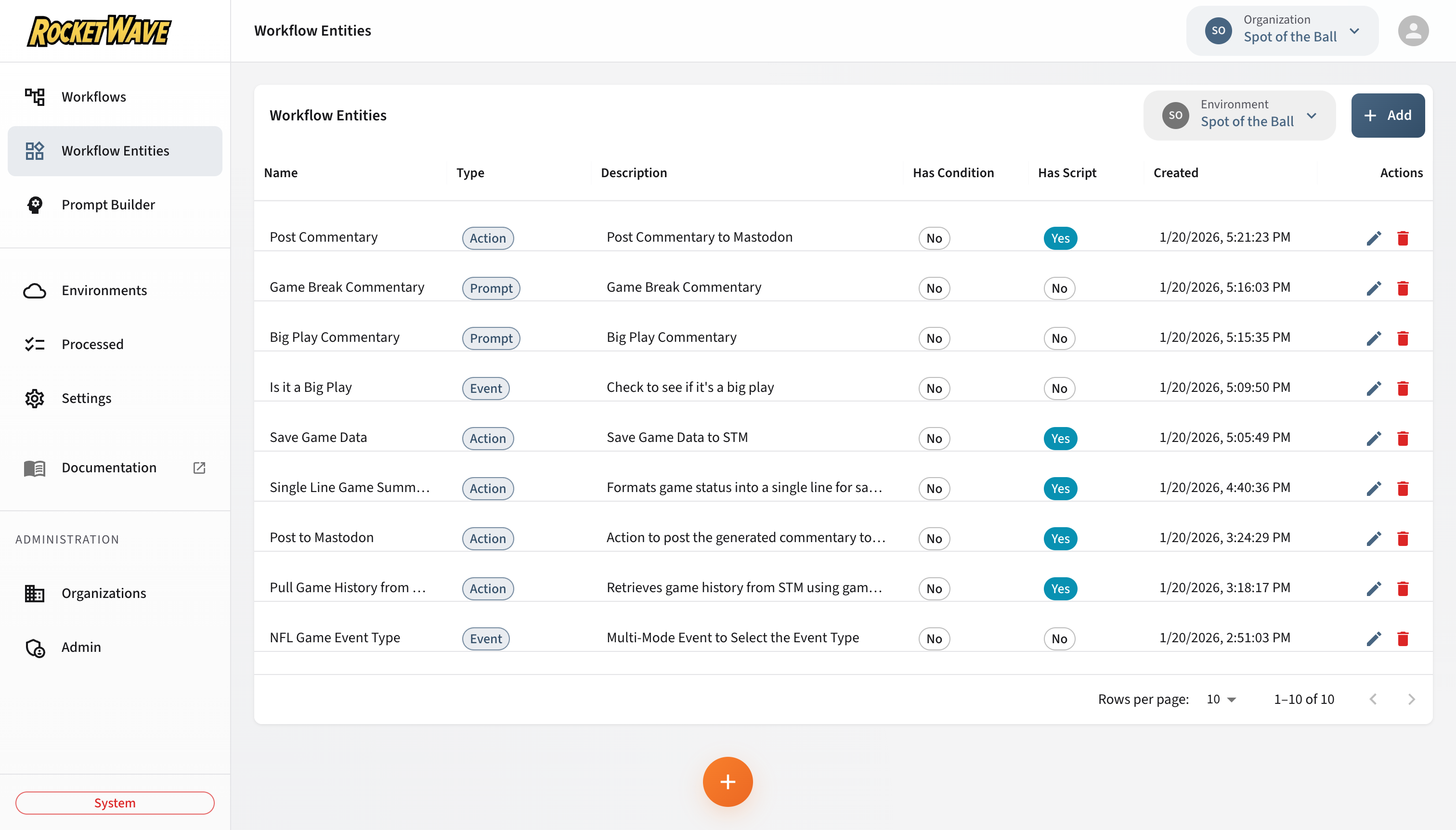
Entity Type System
The platform uses a flexible type system where each entity type defines which features are available:
| Type | Conditions | Pre/Post script | Arguments | Model | Prompt | Logic |
|---|---|---|---|---|---|---|
| Event | ✅ | ✅ | ✅ | ❌ | ❌ | ✅ |
| Prompt | ❌ | ✅ | ✅ | ✅ | ✅ | ❌ |
| Action | ❌ | ✅ | ✅ | ❌ | ❌ | ❌ |
Entity Lifecycle
┌─────────────────────────────────────────────────────────────────┐
│                    Workflow Entity                               │
├─────────────────────────────────────────────────────────────────┤
│  1. Created in Admin UI (Workflow Entities page)                │
│  2. Associated with a Type (Event, Prompt, Action)              │
│  3. Configured with conditions, preScript/postScript, arguments, etc. │
│  4. Added to Workflow Canvas (linked to a node)                 │
│  5. Cached by Consumer on startup                               │
│  6. Executed by UnifiedEntityEvaluator at runtime               │
└─────────────────────────────────────────────────────────────────┘
Common Fields
All entity types share these base fields:
| Field | Type | Description |
|---|---|---|
name | string | Display name for the entity |
description | string | Optional description |
organizationId | UUID | Parent organization |
workflowEntityTypeId | UUID | Reference to entity type |
Type-Specific Features
Conditions (Event only)
A JSON tree structure for evaluating message properties:
{
  "type": "AND",
  "conditions": [
    {
      "field": "type",
      "operator": "equals",
      "value": "user.signup"
    },
    {
      "field": "user.premium",
      "operator": "equals",
      "value": true
    }
  ]
}
Pre-Script and Post-Script
Each entity can define two optional JavaScript snippets, both executed in an isolated V8 sandbox:
| Field | When it runs (unified pipeline) |
|---|---|
preScript | After the message is injected, before arguments, condition, and prompt/model work |
postScript | After prompt/model handling (if any), before context capture and branching |
Typical uses:
// preScript: prepare data before the condition or LLM call
const userId = user.id;
print('Processing user:', userId);

// postScript: react to ___result___, latestPromptResponse(), etc.
print('Condition result:', ___result___);
Use postScript when you need values that only exist after the condition or model call (for example latestPromptResponse()).
Arguments
Key-value pairs injected as variables during the unified pipeline (after preScript, before condition evaluation). Arguments let you configure entities dynamically without modifying scripts.
| Field | Description |
|---|---|
argumentName | Variable name that will be created (e.g., userId) |
argumentValue | Literal string or handlebar reference (e.g., {{user.id}}) |
argumentDescription | Documentation for the argument |
How Arguments Work:
In the Admin UI, you define name-value pairs:
| Argument Name | Argument Value |
|---|---|
eventType | {{event.event_type}} |
playerName | {{event.player.name}} |
greeting | Hello World |
At runtime, these become V8 variables:
var eventType = event.event_type;      // → "touchdown"
var playerName = event.player.name;    // → "Patrick Mahomes"
var greeting = "Hello World";                  // literal string
Handlebar References:
Arguments wrapped in {{...}} are evaluated as expressions. Anything else is treated as a literal string:
| Pattern | Description | Example Result |
|---|---|---|
{{user.id}} | Extract from message | "usr_123" |
{{event.event_type}} | Nested property | "touchdown" |
{{___result___}} | Previous entity result | true |
{{latestPromptResponse()}} | AI response | "Generated text..." |
Hello {{name}} | Literal (no handlebars) | "Hello {{name}}" |
static-value | Literal string | "static-value" |
Use arguments to make entities reusable. Instead of hardcoding values in scripts, extract them as arguments so the same entity can be configured differently in different workflows.
Logic Branching (Event only)
Events support three branching modes:
| Mode | Field | Description |
|---|---|---|
| Single Path | tfCondition: "Single Path" | Continue if condition passes, exit if fails |
| True/False | tfCondition: "True/False" | Branch based on boolean condition result |
| Multi | tfCondition: "Multi", logicField: "varName" | Branch based on variable value |
Model & Prompt (Prompt only)
Associate an AI model and prompt template:
| Field | Description |
|---|---|
modelId | Reference to a Model or Model Configuration |
prompt | Template text for the LLM (can include variables) |
Image Recognition
Prompt entities support image recognition when using vision-capable models (e.g., GPT-4o, Claude 3.5 Sonnet, Gemini Pro Vision). To enable image recognition:
- Select a vision-capable model configuration
- Include image URLs in your message payload or arguments
- The adapter automatically formats the request for the provider's vision API
Supported image input formats:
- URL references:
https://example.com/image.jpg - Base64 encoded:
data:image/jpeg;base64,...
The universal model adapters (OpenAI, Anthropic, Bedrock, Google) handle provider-specific image formatting automatically.
Node-Level Arguments
Arguments can be configured at two levels:
- Entity-level arguments — Defined on the workflow entity itself, shared across all workflows that use it
- Node-level arguments — Defined per-node in the workflow JSON, overriding entity-level values for that specific workflow placement
This allows a single entity to behave differently in different workflows without creating duplicate entities.
{
  "name": "Generate Content",
  "entityId": "prompt-entity-uuid",
  "entityType": "prompt",
  "arguments": {
    "tone": "professional",
    "maxLength": "280"
  },
  "children": [...]
}
When both entity-level and node-level arguments exist for the same name, the node-level value takes precedence.
Entity Execution Flow
When a message arrives, the Consumer:
-
Loads Cache — All entities are pre-loaded from the database
-
Matches Workflow — Finds workflows for org/environment
-
Traverses Tree — Follows workflowData structure
-
Evaluates Each Node — Every entity type runs through
UnifiedEntityEvaluatorusing the same steps:- Pre-Script — Skipped if
preScriptis blank - Inject Arguments — Skipped if there are none
- Evaluate Condition — Skipped if blank (treated as true)
- Prompt + Model — Handlebars, optional model call; skipped if no prompt/model
- Post-Script — Skipped if
postScriptis blank - Capture Context — Persist variables for downstream entities
- Branching — Single Path / True-False / Multi / Iterable (events and other nodes that define logic)
- Pre-Script — Skipped if
Workflow triggers are ordinary messages: they are not auto-passed past the first node; they traverse the same pipeline as any other message.
Creating Entities
Via Admin UI
- Navigate to Workflow Entities
- Click Add
- Select entity type
- Configure fields based on type
- Save
Via API
POST /api/workflow-entities
Content-Type: application/json

{
  "organizationId": "org-uuid",
  "name": "Check Event Type",
  "workflowEntityTypeId": "event-type-uuid",
  "condition": {
    "type": "AND",
    "conditions": [
      { "field": "type", "operator": "equals", "value": "signup" }
    ]
  },
  "preScript": "print('Before condition');",
  "postScript": "print('Event matched:', type);",
  "tfCondition": "Single Path"
}
Reusing Entities
Entities are reusable across workflows:
- Create once, use in multiple workflows
- Changes to an entity affect all workflows using it
- Use the Usage Count API to check dependencies before deletion
GET /api/workflow-entities/{id}/usage-count?organizationId={orgId}
Best Practices
Naming Conventions
- Use descriptive names: "Check Premium User" not "Event 1"
- Include the action: "Generate Welcome Message"
- Add context: "Post to Mastodon (Premium)"
Script Organization
- Use
preScriptfor setup before conditions or the model;postScriptfor work that needs condition results orlatestPromptResponse() - Keep each snippet focused on a single responsibility
- Use arguments for configurable values
- Log with
print()for debugging - Handle errors gracefully
Condition Design
- Start with simple conditions, add complexity as needed
- Use AND/OR groups for complex logic
- Test conditions with sample messages
Related Topics
- Event Entity — Condition evaluation and branching
- Prompt Entity — AI/LLM integration
- Action Entity — Custom script execution
- Model Entity — AI model configuration
- Condition System — Detailed condition documentation