Processed Messages
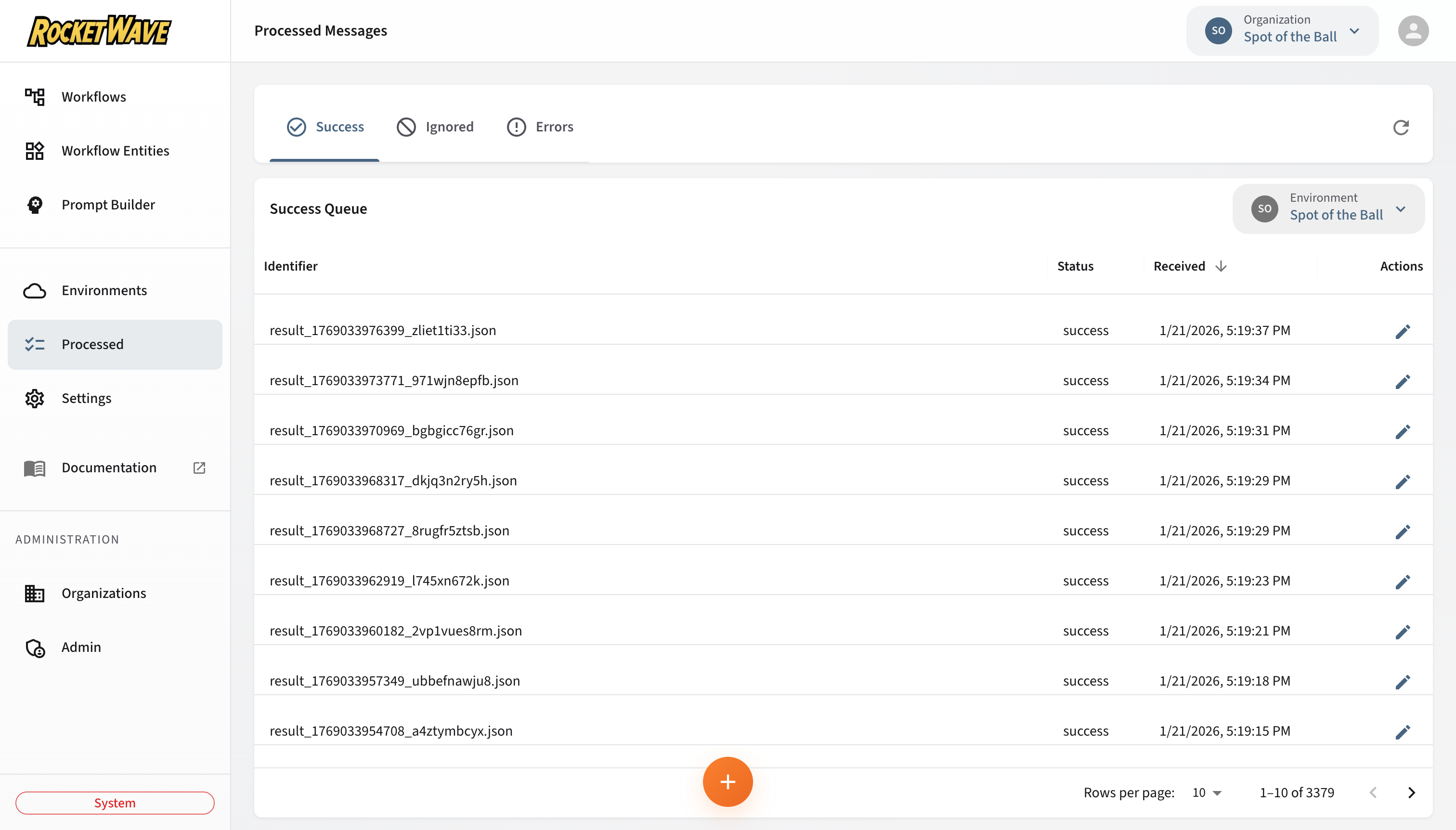
The Processed Messages screen provides visibility into all messages that have been processed by your workflows. Messages are categorized by their final result status and stored in S3 for durability and auditability.
Overview
When a message flows through the Consumer's workflow engine, its outcome is determined by whether it completed successfully, encountered errors, or was ignored. The message and its execution context are saved to an S3 bucket organized by status:
s3://your-bucket/
  └── {organizationId}/
        └── {environmentId}/
              ├── success/     ← Workflows completed successfully
              ├── fail/        ← Workflows encountered errors
              └── ignore/      ← Messages didn't match any workflow
Screen Layout
The Processed Messages screen features:
- Environment Selector — Filter messages by environment
- Status Tabs — Switch between Errors, Ignored, and Success queues
- Data Table — Paginated, sortable list of processed messages
- Actions — View, delete, resend, send to prompt builder
Status Tabs
| Tab | Icon | Description |
|---|---|---|
| Errors | ⚠️ | Workflows that failed due to script errors, timeouts, or exceptions |
| Ignored | 🚫 | Messages that didn't match any workflow conditions |
| Success | ✅ | Workflows that completed without errors |
Data Table Columns
| Column | Description |
|---|---|
| Identifier | Unique filename/key in S3 |
| Status | Result status (success, fail, ignore) |
| Received | Original timestamp when message was received |
| Elapsed | Processing duration from received to completion |
Sorting
Click any column header to sort the table. The table supports server-side sorting for efficient handling of large datasets:
- Received — Sort by message arrival time (default: newest first)
- Elapsed — Sort by processing duration to identify slow workflows
Elapsed Time Display
The elapsed time column shows how long it took to process the message:
| Display | Meaning |
|---|---|
125ms | 125 milliseconds |
1.5s | 1.5 seconds |
2.3s | 2.3 seconds |
Sort by Elapsed descending to find the slowest workflows. High elapsed times may indicate:
- Slow LLM API calls
- Complex script logic
- External API latency
Message Details
Viewing a Message
Click the Edit icon to open the message detail dialog showing:
- Message Tab — The original incoming message payload
- Context Tab — Execution context with variables and workflow results
- Execution Log Tab — Step-by-step timeline of workflow execution
Message Schema
{
  "message": {
    "id": "msg_12345",
    "organizationId": "org_abc",
    "environmentId": "env_xyz",
    "payload": {
      "event": "user.signup",
      "data": { "userId": "u_789", "email": "user@example.com" }
    }
  },
  "context": {
    "welcomeMessage": "Hello, user@example.com!",
    "____execution_log____": [ ... ],
    "____workflow_metadata____": {
      "workflowId": "wf_001",
      "workflowName": "New User Welcome"
    }
  },
  "timestamp": "2026-01-20T10:30:00.000Z",
  "receivedAt": "2026-01-20T10:30:00.000Z",
  "status": "success"
}
Execution Log Timeline
The Execution Log tab displays a visual timeline of every step in the workflow execution. Related log entries are automatically combined by entity for easier reading.
Timeline Entry Structure
Each accordion item shows:
| Field | Description |
|---|---|
| Entity Name | Name of the workflow entity |
| Entity Type | Event, Prompt, or Action |
| Duration | Time taken to evaluate this entity |
| Status | Success (✓) or Error (✗) indicator |
Expanded Entry Details
Click an accordion to see detailed information:
Event Entity Details
{
  "type": "event",
  "action": "branch_evaluated",
  "mode": "Multi",
  "logicField": "metadata.event_type",
  "logicValue": "play",
  "branchTaken": "play",
  "childCount": 3
}
| Field | Description |
|---|---|
mode | Single Path, True/False, Multi, or Iterable |
conditionResult | Boolean result of condition evaluation |
logicField | Field path used for Multi/Iterable branching |
logicValue | Actual value found at logicField |
branchTaken | Which branch was selected |
childCount | Number of child entities to process |
Prompt Entity Details
{
  "type": "api",
  "service": "llm",
  "model": "claude-3-sonnet",
  "durationMs": 2340,
  "success": true,
  "outputSize": 1523
}
| Field | Description |
|---|---|
service | API service called (llm, etc.) |
model | Model name used |
durationMs | API call duration |
outputSize | Response size in characters |
Action Entity Details
{
  "type": "script",
  "action": "executed",
  "hasScript": true,
  "success": true,
  "durationMs": 45,
  "scriptPreview": "const result = await fetch..."
}
| Field | Description |
|---|---|
hasScript | Whether entity has a script |
durationMs | Script execution time |
scriptPreview | First ~200 characters of script |
scriptLength | Total script length |
Enhanced Error Display
When a workflow fails, the execution log provides detailed error information with actionable suggestions.
Error Entry Schema
{
  "ts": 1705315800123,
  "elapsed": 2500,
  "entityId": "ent_123",
  "entityName": "Process Data",
  "entityType": "Action",
  "type": "script",
  "action": "executed",
  "success": false,
  "error": "Cannot read properties of undefined (reading 'name')",
  "errorType": "TypeError",
  "suggestion": "You tried to access a property on something that is undefined. Add a null check: \"if (obj && obj.property)\" or use optional chaining: \"obj?.property\".",
  "scriptPreview": "const name = data.user.name;...",
  "scriptLength": 342,
  "messageSummary": {
    "organizationId": "org_abc",
    "environmentId": "env_xyz",
    "eventType": "user.action"
  }
}
Error Fields
| Field | Description |
|---|---|
error | The error message |
errorType | JavaScript error type (TypeError, ReferenceError, etc.) |
suggestion | AI-generated suggestion for fixing the error |
scriptPreview | Snippet of the failing script |
messageSummary | Key fields from the message for context |
Common Error Types and Suggestions
| Error Type | Common Cause | Suggestion |
|---|---|---|
TypeError | Accessing property of undefined | Use optional chaining (?.) or null checks |
ReferenceError | Using undefined variable | Check variable spelling or ensure it's defined |
SyntaxError | Invalid JavaScript syntax | Check for missing brackets, quotes, or semicolons |
TimeoutError | Script exceeded 5s limit | Optimize script or increase timeout |
Send to Prompt Builder
For Prompt entities in the execution log, you can send the complete execution context to the Prompt Builder for testing and iteration.
How to Use
- Open a processed message
- Navigate to the Execution Log tab
- Find a Prompt entity entry
- Click the Send to Prompt Builder icon (arrow)
What Gets Copied
All context variables from the execution are transferred:
| Variable | Description |
|---|---|
message | The original incoming message |
latestPromptResponse | Response from previous Prompt entities |
promptData | Parsed JSON from prompt responses |
| All custom variables | Any variables set by scripts |
| Environment variables | Variables from Admin Console |
Context Variables Display
The Context tab in message details shows variables captured during workflow execution. Variables are organized into two distinct sections for clarity:
Environment Variables Section
Environment variables (defined in Settings) are displayed in a separate collapsible section:
| Display | Description |
|---|---|
| Variable Name | The name of the environment variable (e.g., OPENAI_API_KEY) |
| Lock Icon | Indicates this is a secure environment variable |
| env badge | Visual indicator that this is an environment variable |
| Value | Displayed as ••••••• (masked for security) |
Environment variable values are never displayed in the UI, even in the execution context. They are always shown as masked (•••••••) to prevent accidental exposure of sensitive credentials.
Execution Variables Section
Variables created during workflow execution are displayed with their full values:
| Variable | Description |
|---|---|
message | The incoming message payload (expandable JSON) |
latestPromptResponse | AI model response from Prompt entities |
| Custom variables | Any variables set by entity scripts |
How It Works
- Environment variables are injected into the V8 context at execution start
- The variable names are tracked in
__env_variable_names__ - When displaying context, variables are categorized:
- Variables in
__env_variable_names__→ Environment Variables section - All other variables → Execution Variables section
- Variables in
- Internal variables (prefixed with
____) are filtered out
Use Cases
- Debug prompt issues — Test the exact prompt with real data
- Iterate on prompts — Refine prompts using actual message payloads
- Compare versions — Test different prompt versions against same data
Operations
Filtering by Environment
- Use the Environment Selector dropdown at the top
- Select a specific environment or leave empty to view all
- The table automatically refreshes with filtered results
Deleting Messages
Single Delete:
- Click the Delete icon (trash) in the row actions
- Confirm in the dialog
Bulk Delete:
- Select multiple rows using checkboxes
- Click Delete Selected in the toolbar
- Confirm the deletion
Purging a Queue
To delete all messages in a queue:
- Click the Purge All button in the toolbar
- Review the confirmation showing:
- Queue name (e.g., "Error Queue")
- Environment name (if filtered)
- Confirm to permanently delete all messages
Purging is irreversible. All messages in the selected queue (and environment, if filtered) will be permanently deleted from S3.
Resending Messages
The Resend feature allows you to reprocess messages through the workflow engine:
- Open a message detail dialog
- Click Resend
- The message will be re-submitted to the Kinesis stream for reprocessing
This is useful for:
- Retrying after fixing a bug in a workflow
- Reprocessing after updating environment variables
- Testing workflow changes against historical messages
Understanding Results
Success Status
A message receives success status when:
- At least one workflow's first Event entity condition matched
- The workflow traversed through all entities without errors
- All scripts completed successfully
Example workflow path:
Event (Check User Type) → Prompt (Generate Welcome) → Action (Post Message)
Fail Status
A message receives fail status when:
- A workflow's Event condition matched (workflow "fired")
- A subsequent script throws an unhandled exception
- A script execution times out (default: 5 seconds)
- An external API call fails and isn't handled
Ignore Status
A message receives ignore status when:
- No workflows exist for the organization/environment
- No workflow's first Event entity condition matched the message
This is the default outcome for messages that don't trigger any workflow.
First-Match-Wins Logic
The Consumer uses "first-match-wins" logic:
- Workflows are evaluated in order
- The first workflow whose initial Event condition passes is executed
- No other workflows are evaluated for that message
- If the fired workflow completes successfully →
success - If the fired workflow has errors →
fail - If no workflow fires →
ignore
Monitoring & Debugging
Debugging Failed Workflows
- Navigate to the Errors tab
- Sort by Received to see recent failures
- Open a failed message to view:
- The original message payload
- The error message with suggestions
- Which entity caused the failure
- Click Send to Prompt Builder to test Prompt entities
- Navigate to Workflow Entities to fix the script
- Optionally resend the message to verify the fix
Analyzing Ignored Messages
High numbers of ignored messages may indicate:
- Missing workflow configurations
- Event conditions that are too restrictive
- Messages being sent to the wrong environment
- Cache not yet refreshed with new workflows
Review ignored messages to ensure your workflows are capturing the events you expect.
Performance Analysis
Use the Elapsed column to identify performance issues:
- Sort by Elapsed descending
- Look for patterns in slow messages
- Check the execution log for which entities take longest
- Common culprits:
- LLM API calls (typically 1-3 seconds)
- External API calls without timeouts
- Complex script logic
API Reference
Processed messages are managed through the /api/processed-queue endpoint.
Quick Reference
| Operation | Method | Endpoint |
|---|---|---|
| List | GET | /api/processed-queue?organizationId={id}&status={status} |
| Get by ID | GET | /api/processed-queue/{key} |
| Delete | DELETE | /api/processed-queue/{key} |
| Bulk Delete | DELETE | /api/processed-queue?keys={key1,key2} |
| Purge | DELETE | /api/processed-queue?organizationId={id}&status={status} |
Query Parameters
| Parameter | Required | Description |
|---|---|---|
organizationId | Yes | Filter by organization |
environmentId | No | Filter by environment |
status | Yes | Queue folder: success, fail, or ignore |
page | No | Page number (default: 1) |
limit | No | Items per page (default: 10) |
sortBy | No | Sort field: receivedAt (default), timestamp |
sortOrder | No | Sort direction: desc (default), asc |
Response Schema
{
  "data": [
    {
      "id": "org_abc/env_xyz/success/result_1705315800123_abc123.json",
      "fileName": "result_1705315800123_abc123.json",
      "organizationId": "org_abc",
      "environmentId": "env_xyz",
      "message": { ... },
      "context": { ... },
      "timestamp": "2026-01-20T10:30:00.254Z",
      "receivedAt": "2026-01-20T10:30:00.000Z",
      "status": "success"
    }
  ],
  "pagination": {
    "page": 1,
    "limit": 10,
    "total": 1523,
    "totalPages": 153
  },
  "sorting": {
    "sortBy": "receivedAt",
    "sortOrder": "desc"
  }
}
Related Topics
- Environments — Configure environments for message isolation
- Workflow Entities — Configure entities and scripts
- Prompt Builder — Test and iterate on prompts