Settings
The Settings screen allows you to manage organization-specific configuration including Variables (secure key-value pairs), Models (AI/LLM configurations), System Models (platform-wide AI models), and Users (team member management with role-based access control).
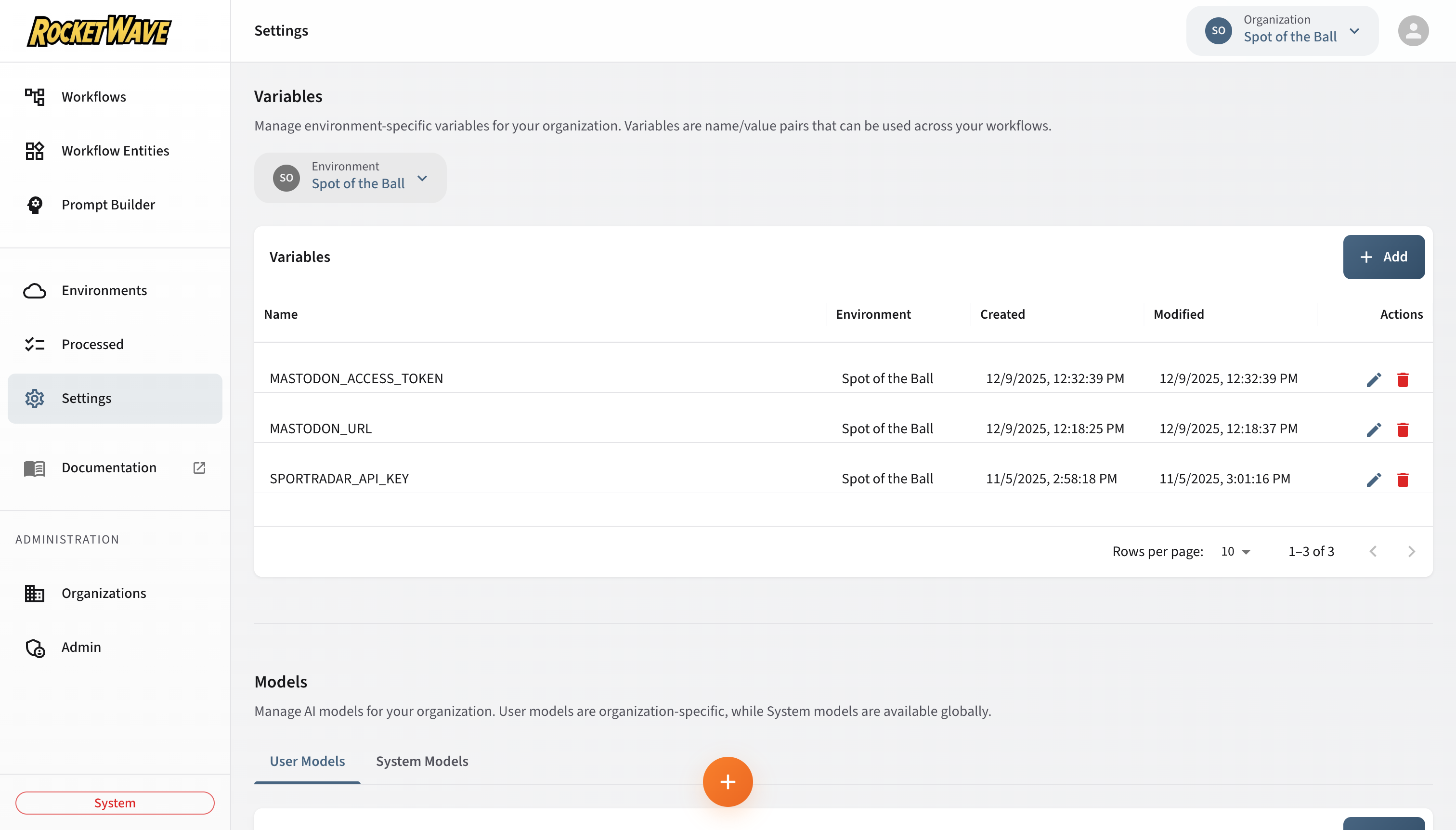
Billing and subscription management has moved to the Dashboard for better visibility. Navigate to the Dashboard to view and manage your subscription plan.
Variables
Variables are secure, environment-scoped key-value pairs that are injected into workflow execution contexts. Use variables for API keys, configuration values, and other sensitive data.
Security Model
Variables follow a write-only security model:
- Values are never exposed through the API or UI after creation
- Only the variable name is visible when editing
- Values are encrypted at rest in the database
- Values are decrypted and injected into the V8 isolate at runtime
This design ensures that sensitive credentials like API keys cannot be retrieved by users with read-only access or through API inspection.
Creating a Variable
- Select an Environment from the dropdown (required for new variables)
- Click the Add button
- Enter the variable details:
- Name (required): The variable identifier (e.g.,
MASTODON_ACCESS_TOKEN) - Value (required for new): The secret value to store
- Name (required): The variable identifier (e.g.,
Example:
Name: OPENAI_API_KEY
Value: sk-proj-xxxxxxxxxxxxx
Using Variables in Scripts
Variables are automatically injected into the V8 execution context. You can access them in three ways:
1. Direct Variable Access:
// Variables are injected as top-level vars
const apiKey = OPENAI_API_KEY;
const serverUrl = MASTODON_SERVER_URL;
2. Variables Object:
// Access all variables as an array
for (const variable of __variables__) {
  print(`${variable.name}: defined`);
}
3. Variables by Name Map:
// Access variables by name from a lookup object
const token = __variablesByName__['API_TOKEN'];
Variable Table Columns
| Column | Description |
|---|---|
| Name | Variable identifier |
| Environment | Which environment this variable belongs to |
| Created | When the variable was created |
| Modified | When the variable was last updated |
Editing a Variable
- Click the Edit icon (pencil) in the row actions
- Update the Name if needed
- Optionally enter a new Value (leave blank to keep existing)
- Click Save
When editing, the current value is not displayed. Enter a new value only if you want to change it.
Deleting a Variable
- Click the Delete icon (trash) in the row actions
- Confirm the deletion
Deleting a variable may break workflows that depend on it. Ensure no active workflows reference the variable before deletion.
Best Practices
Naming Conventions:
- Use
SCREAMING_SNAKE_CASEfor consistency - Prefix with service name:
MASTODON_ACCESS_TOKEN,OPENAI_API_KEY - Avoid generic names like
TOKENorKEY
Environment Separation:
Development Environment:
  - MASTODON_SERVER_URL: https://mastodon.social (test server)
  - DEBUG_MODE: true

Production Environment:
  - MASTODON_SERVER_URL: https://your-instance.com
  - DEBUG_MODE: false
Universal Model System
The platform uses a universal model system that supports multiple AI providers through a structured hierarchy of providers, definitions, credentials, and configurations.
Model Hierarchy
Model Provider (e.g., OpenAI, Anthropic, Google, AWS Bedrock, xAI)
  └── Model Definition (e.g., GPT-4o, Claude 3.5 Sonnet, Gemini Pro)
        └── Model Credential (API key or IAM role for the provider)
              └── Model Configuration (ready-to-use config with defaults)
Model Providers
Providers are the AI platforms supported by the system. These are seeded reference data and include:
| Provider | API Format | Auth Type |
|---|---|---|
| OpenAI | openai | API Key |
| Anthropic | anthropic | API Key |
| AWS Bedrock | bedrock | IAM Role |
| Google (Gemini) | google | API Key / Service Account |
| xAI (Grok) | openai | API Key |
Model Definitions
Definitions are specific models within a provider (e.g., GPT-4o, Claude 3.5 Sonnet). They include:
| Field | Description |
|---|---|
| Display Name | Human-readable name |
| Model ID | Provider-specific identifier (e.g., gpt-4o) |
| Category | chat, embedding, image, etc. |
| Tier | standard, premium, economy |
| Context Window | Maximum token capacity |
| Pricing | Input/output cost per million tokens |
| Capabilities | Vision, function calling, streaming, etc. |
Model Credentials
Credentials store authentication details for a provider. They can be scoped to:
- System: Available to all organizations (managed by platform admins)
- Organization: Private to a single organization
| Field | Description |
|---|---|
| Name | Display name (e.g., "Production OpenAI Key") |
| Provider | Which provider this authenticates with |
| Scope | system or organization |
| API Key | Bearer token (write-only, never exposed after creation) |
| Rate Limits | Optional requests/tokens per minute/day caps |
Credential values (API keys, service account JSON) are write-only — they are never returned in API responses. Only boolean flags like hasApiKey are returned.
Model Configurations
Configurations combine a model definition with a credential and optional defaults to create a ready-to-use model:
| Field | Description |
|---|---|
| Name | Configuration display name |
| Model Definition | Which specific model to use |
| Credential | Which credential to authenticate with |
| Default Temperature | Default sampling temperature |
| Default Max Tokens | Default maximum response tokens |
| Visibility | Whether this config appears in model selectors |
| Priority | Ordering preference when multiple configs exist |
Creating a Model Configuration
- Navigate to Settings → Models tab
- Select or create a Credential for your provider
- Click Add Configuration
- Select a Model Definition and Credential
- Set default parameters (temperature, max tokens)
- Save
Using Models in Workflows
Model configurations are selected in Prompt workflow entities:
- Create a Prompt entity
- Select the model configuration from the dropdown
- Configure the prompt template
- The credential is automatically used during execution
Validating Credentials
You can validate that a credential works before using it:
- Navigate to the credential
- Click Validate
- The system makes a minimal test call to the provider
- Results show success or the specific error
Legacy Models
The system also supports legacy models for backward compatibility. Legacy models store the URL and credentials directly on the model record rather than using the provider/definition/credential hierarchy.
See the Model Entity documentation for details on both legacy and universal models.
API Reference
For complete API documentation:
- Model Providers API — List providers and definitions
- Model Credentials API — Manage authentication credentials
- Model Configurations API — Configure ready-to-use models
- Legacy Models API — Legacy model CRUD operations
Users
The Users section allows you to manage team members within your organization with Role-Based Access Control (RBAC). User management is powered by Auth0 Organizations, providing enterprise-grade identity management.
Viewing Organization Members
The Users grid displays all current members of the selected organization:
| Column | Description |
|---|---|
| Avatar | User's profile picture (or initial) |
| Name | User's display name from their identity provider |
| User's email address | |
| Role | User's assigned role within this organization |
| Joined | When the user was added to the organization |
Inviting New Users
To invite a new team member to your organization:
- Click the Invite button in the toolbar
- Enter the user's email address
- Select a Role for the new member (Admin, User, or Guest)
- Click Send Invitation
What happens next:
- An invitation email is sent to the specified address
- The invitee clicks the link to accept the invitation
- If they don't have an account, they'll create one during signup
- Once accepted, they appear in the Users grid with their assigned role
- They can immediately access the organization's resources based on their permissions
Invitations expire after 7 days. You can resend or revoke invitations from the pending invitations list.
Role-Based Access Control (RBAC)
The platform implements a comprehensive permission system that controls access to resources based on user roles within each organization.
Available Roles
| Role | Description | Use Case |
|---|---|---|
| System | Full platform access (platform owners only) | Platform administrators |
| Admin | Full access to organization resources | Organization managers |
| User | Can create/edit workflows, read-only access to entities | Developers and analysts |
| Guest | Read-only access to all resources | Stakeholders and reviewers |
Permission Matrix
Workflow Permissions
| Permission | System | Admin | User | Guest |
|---|---|---|---|---|
workflows:read | ✅ | ✅ | ✅ | ✅ |
workflows:create | ✅ | ✅ | ✅ | ❌ |
workflows:update | ✅ | ✅ | ✅ | ❌ |
workflows:delete | ✅ | ✅ | ✅ | ❌ |
Entity Permissions
| Permission | System | Admin | User | Guest |
|---|---|---|---|---|
entities:read | ✅ | ✅ | ✅ | ✅ |
entities:create | ✅ | ✅ | ❌ | ❌ |
entities:update | ✅ | ✅ | ❌ | ❌ |
entities:delete | ✅ | ✅ | ❌ | ❌ |
Environment Permissions
| Permission | System | Admin | User | Guest |
|---|---|---|---|---|
environments:read | ✅ | ✅ | ✅ | ✅ |
environments:create | ✅ | ✅ | ❌ | ❌ |
environments:update | ✅ | ✅ | ❌ | ❌ |
environments:delete | ✅ | ✅ | ❌ | ❌ |
Variable Permissions
| Permission | System | Admin | User | Guest |
|---|---|---|---|---|
variables:read | ✅ | ✅ | ✅ | ✅ |
variables:create | ✅ | ✅ | ❌ | ❌ |
variables:update | ✅ | ✅ | ❌ | ❌ |
variables:delete | ✅ | ✅ | ❌ | ❌ |
Member Management Permissions
| Permission | System | Admin | User | Guest |
|---|---|---|---|---|
members:read | ✅ | ✅ | ✅ | ❌ |
members:invite | ✅ | ✅ | ❌ | ❌ |
members:remove | ✅ | ✅ | ❌ | ❌ |
members:editRole | ✅ | ✅ | ❌ | ❌ |
Special Permissions
| Permission | System | Admin | User | Guest | Description |
|---|---|---|---|---|---|
organizations:* | ✅ | ❌ | ❌ | ❌ | Organization CRUD (system only) |
admin:access | ✅ | ❌ | ❌ | ❌ | Admin screens access |
sentiment:access | ✅ | ❌ | ❌ | ❌ | Sentiment analysis access |
How RBAC Works
- Authentication: User logs in via Auth0
- Organization Context: User selects an organization
- Role Lookup: System queries
UserOrganizationRolefor the user's role in that organization - Permission Evaluation:
PermissionEvaluatorchecks permissions for each API request - Access Control: API routes return 403 Forbidden if permission is denied
API Permission Checking
Every API route checks permissions using the getAuthContext function:
// In API route
const auth = await getAuthContext(req, organizationId);

if (!auth.permissions.can('entities:create')) {
  return NextResponse.json(
    { error: 'Forbidden: You do not have permission to create entities' },
    { status: 403 }
  );
}
Database Schema
RBAC is implemented with these database models:
model User {
  id          String   @id @default(uuid())
  auth0UserId String   @unique
  email       String   @unique
  name        String?
  picture     String?

  organizationRoles UserOrganizationRole[]
}

model Role {
  id          String   @id @default(uuid())
  name        String   @unique  // 'admin', 'user', 'guest'
  description String?

  userRoles   UserOrganizationRole[]
}

model UserOrganizationRole {
  id             String       @id @default(uuid())
  userId         String
  organizationId String
  roleId         String

  @@unique([userId, organizationId])
}
Changing User Roles
To change a user's role within your organization:
- Navigate to Settings → Users
- Find the user in the grid
- Click the Edit Role button (pencil icon)
- Select the new role from the dropdown
- Click Save
Only users with members:editRole permission (Admin or System) can change roles.
Removing Users
To remove a user from your organization:
- Navigate to Settings → Users
- Find the user in the grid
- Click the Remove button (trash icon)
- Confirm the removal
Removing a user immediately revokes their access to the organization. They can be re-invited later if needed.
Auth0 Integration
The Users feature integrates with Auth0 Organizations to provide:
- Single Sign-On (SSO) — Users can authenticate with their identity provider
- Multi-Factor Authentication (MFA) — Enhanced security for user accounts
- Social Logins — Support for Google, GitHub, and other providers
- Enterprise Connections — SAML, OIDC, and Active Directory integration
Environment Variables Required:
# Auth0 application credentials
AUTH0_SECRET=your-auth0-secret
AUTH0_BASE_URL=https://your-app.com
AUTH0_ISSUER_BASE_URL=https://your-tenant.auth0.com
AUTH0_CLIENT_ID=your-client-id
AUTH0_CLIENT_SECRET=your-client-secret

# Auth0 Machine-to-Machine credentials (for Management API)
AUTH0_DOMAIN=your-tenant.auth0.com
AUTH0_M2M_CLIENT_ID=your-m2m-client-id
AUTH0_M2M_CLIENT_SECRET=your-m2m-client-secret
API Reference
For complete API documentation with JavaScript, cURL, and MCP examples, see the dedicated API reference pages:
Variables API
| Operation | Method | Endpoint |
|---|---|---|
| List | GET | /api/variables?organizationId={id}&environmentId={id} |
| Create | POST | /api/variables |
| Get by ID | GET | /api/variables/{id} |
| Update | PUT | /api/variables/{id} |
| Delete | DELETE | /api/variables/{id} |
Complete Variables API Reference →
Models API
| Operation | Method | Endpoint |
|---|---|---|
| List | GET | /api/models?organizationId={id} |
| Create | POST | /api/models |
| Get by ID | GET | /api/models/{id} |
| Update | PUT | /api/models/{id} |
| Delete | DELETE | /api/models/{id} |
Complete Models API Reference →
Users & Members API
| Operation | Method | Endpoint | Permission |
|---|---|---|---|
| List Members | GET | /api/organizations/{id}/members | members:read |
| Get Member | GET | /api/organizations/{id}/members/{userId} | members:read |
| Update Role | PUT | /api/organizations/{id}/members/{userId} | members:editRole |
| Remove Member | DELETE | /api/organizations/{id}/members/{userId} | members:remove |
Invitations API
| Operation | Method | Endpoint | Permission |
|---|---|---|---|
| List Invitations | GET | /api/organizations/{id}/invitations | members:read |
| Send Invitation | POST | /api/organizations/{id}/invitations | members:invite |
| Revoke Invitation | DELETE | /api/invitations/{id} | members:invite |
| Accept Invitation | POST | /api/invitations/{token}/accept | (Invitee only) |
Roles API
| Operation | Method | Endpoint | Permission |
|---|---|---|---|
| List Roles | GET | /api/roles | Any authenticated |
Related Topics
- Variables API Reference — Complete Variables API with JavaScript, cURL, MCP examples
- Models API Reference — Complete Models API with JavaScript, cURL, MCP examples
- Environments — Create environments for variable scoping
- Prompt Entities — Use models in AI workflow steps
- Scripts Reference — Access variables in workflow scripts
- Entity API Submission — CRUD operations with permission requirements